
Vehicles
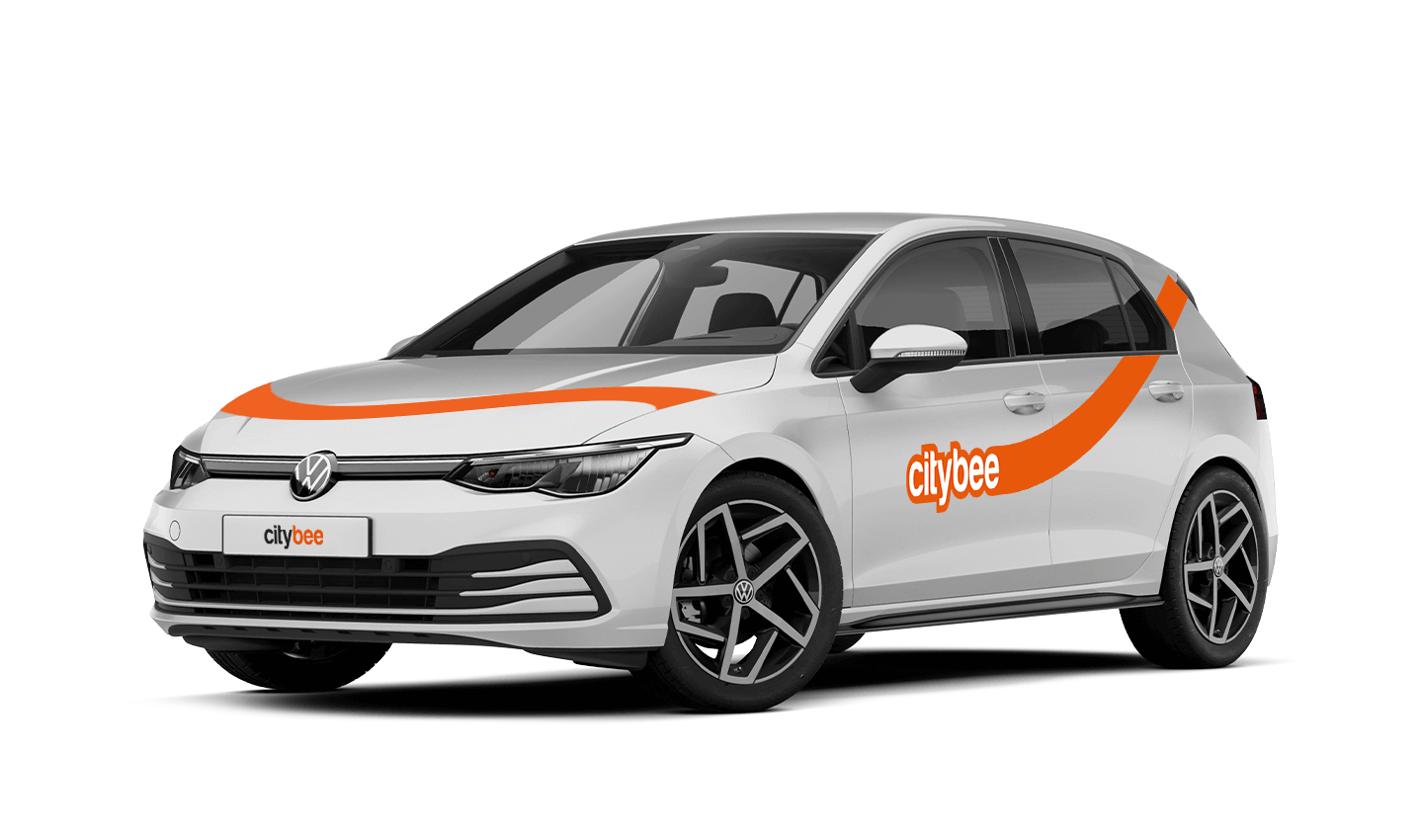
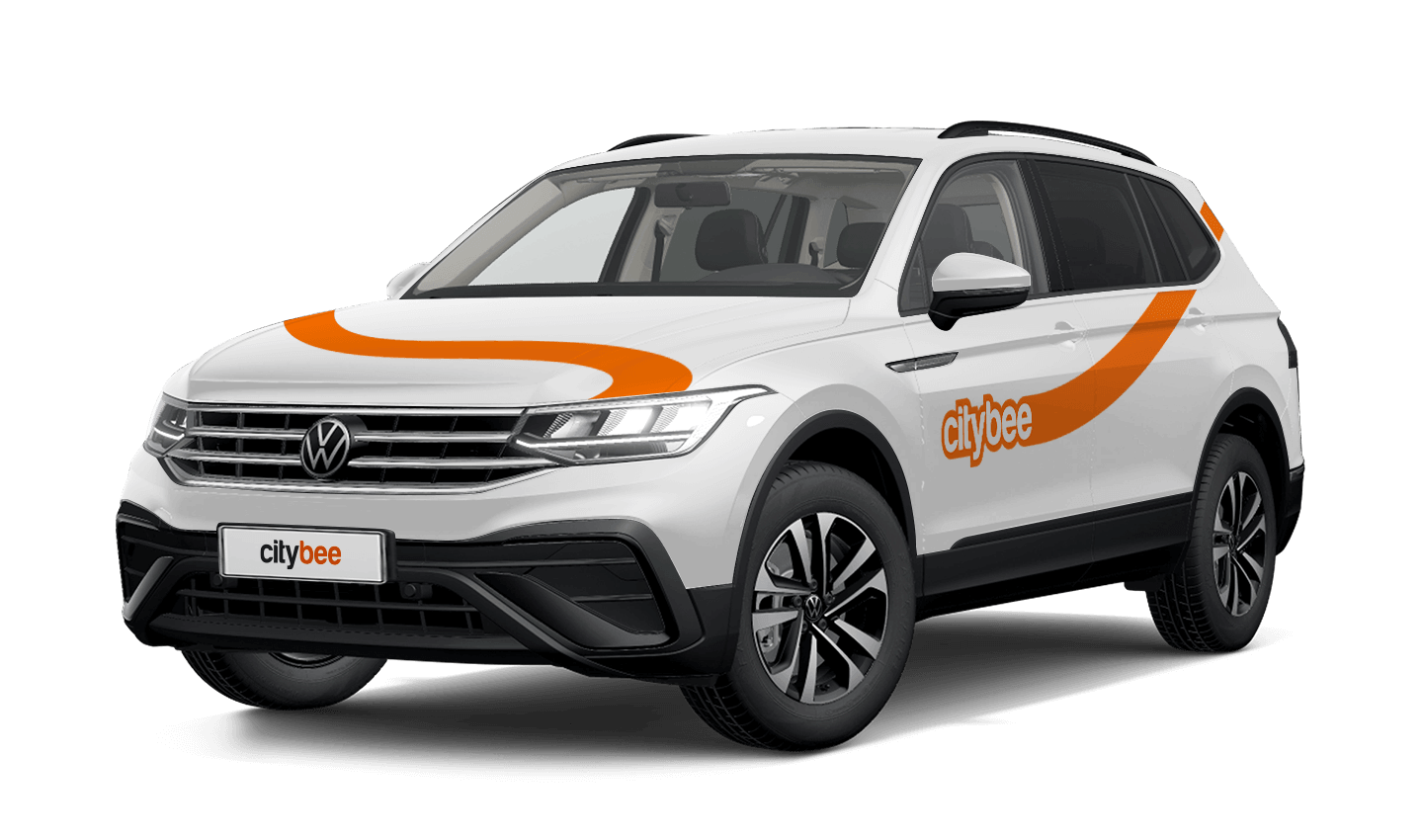
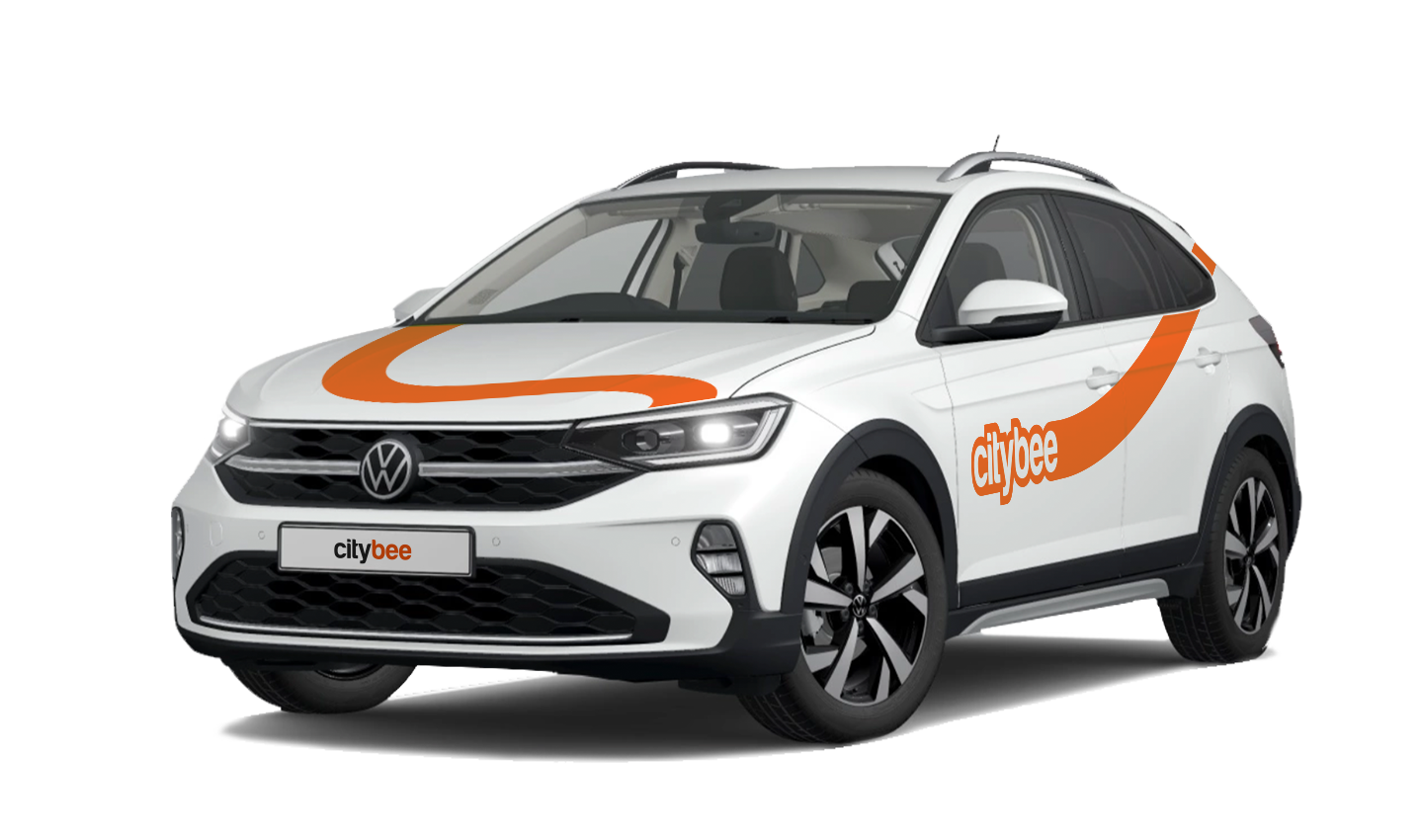
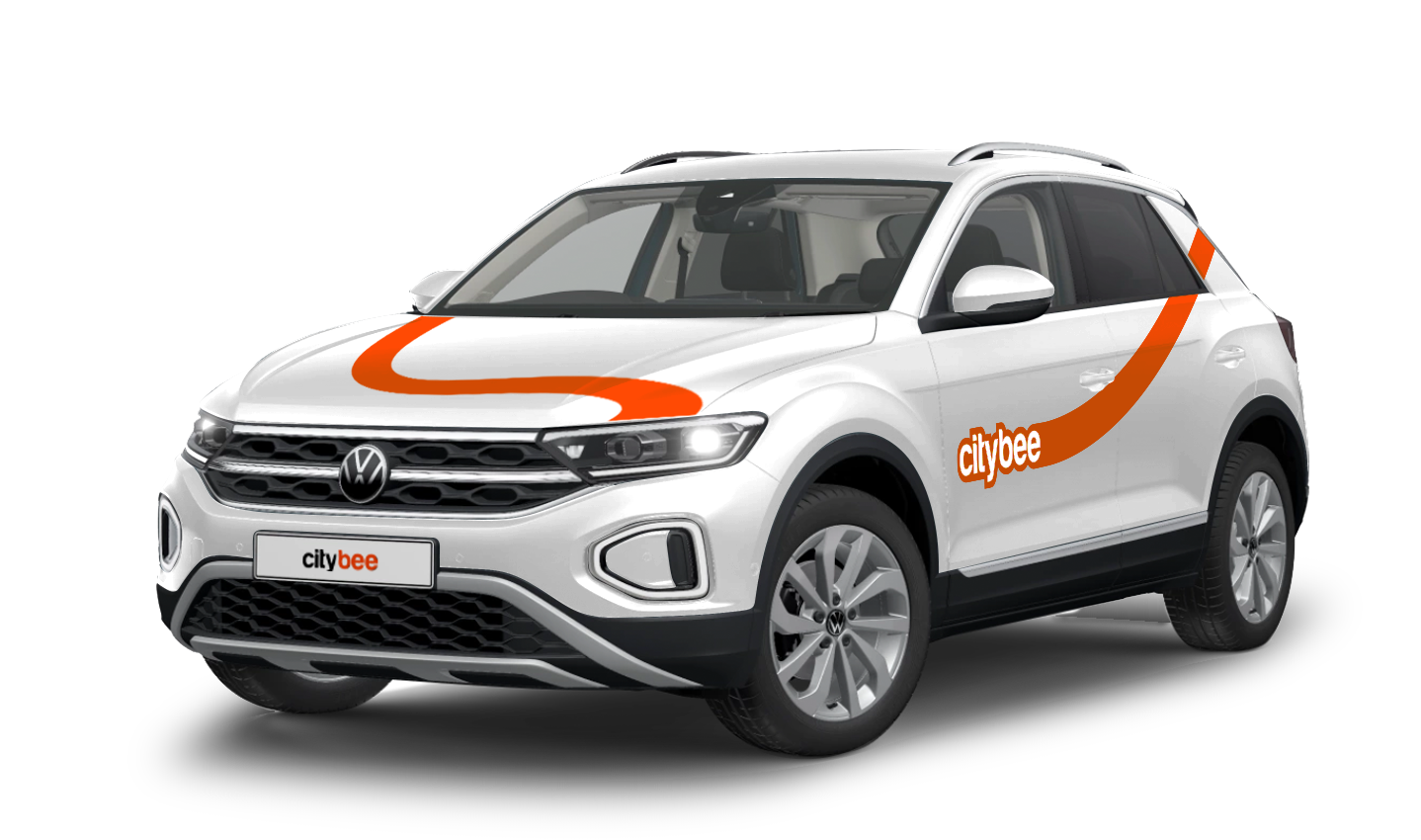
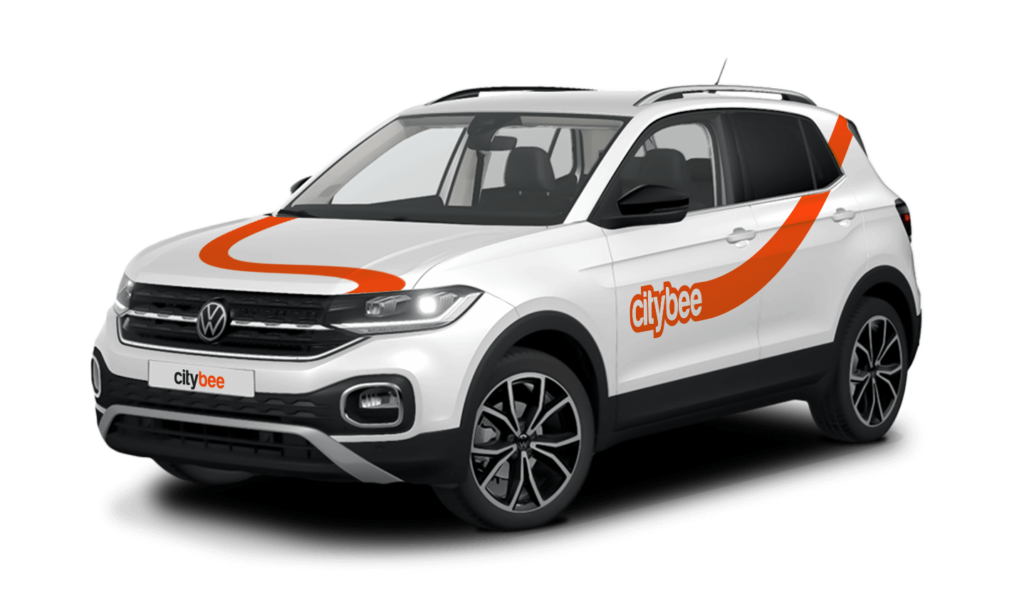
Volkswagen
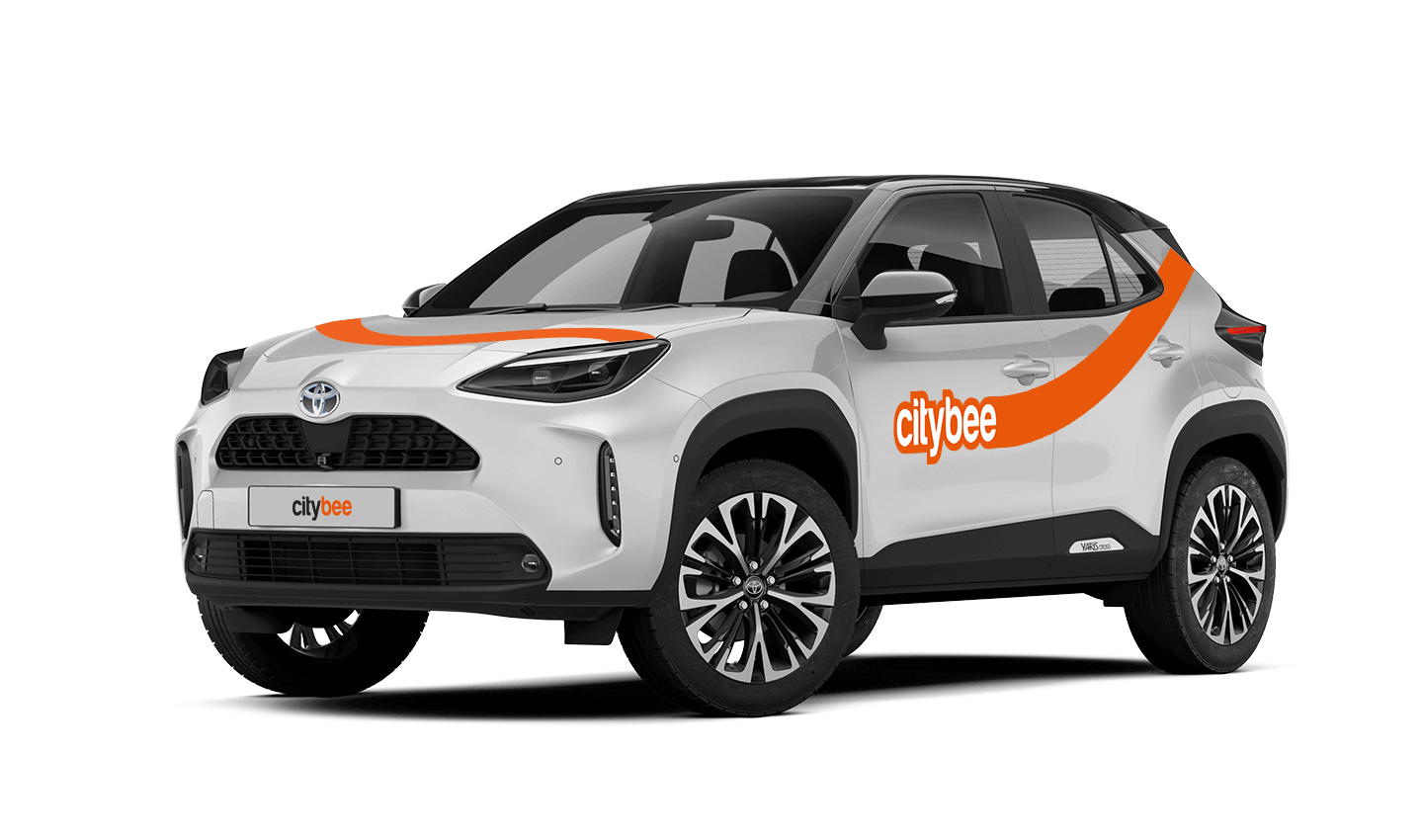
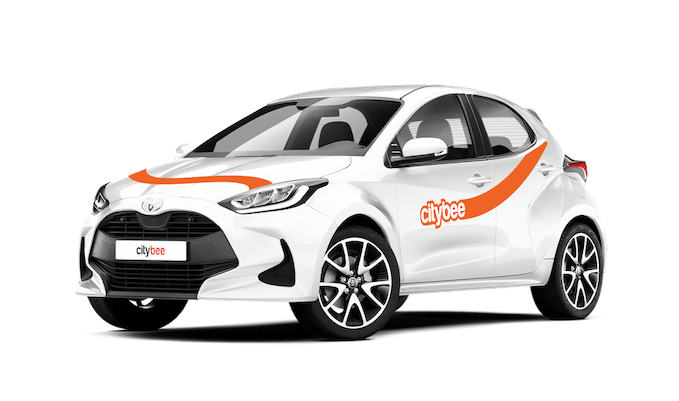
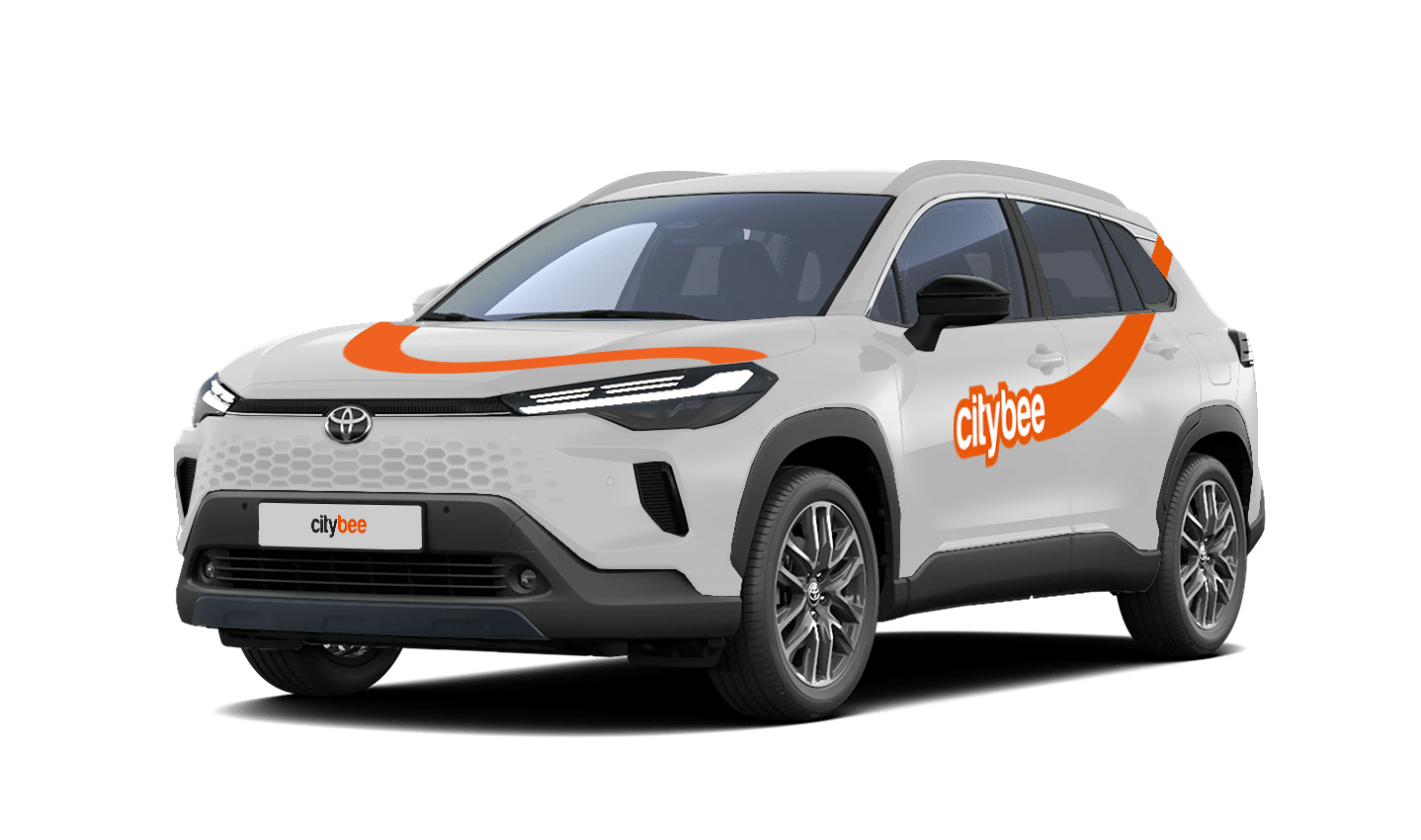
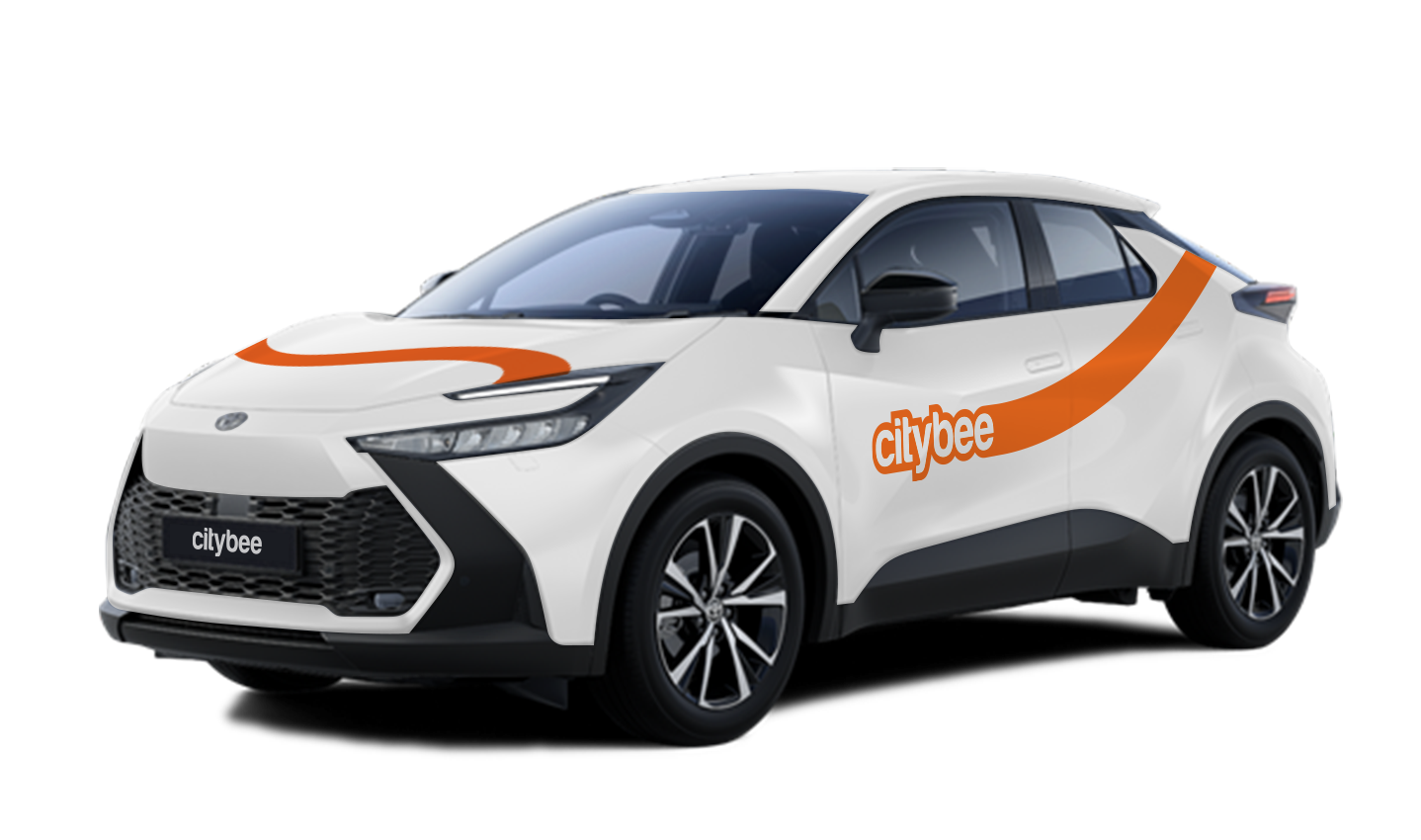
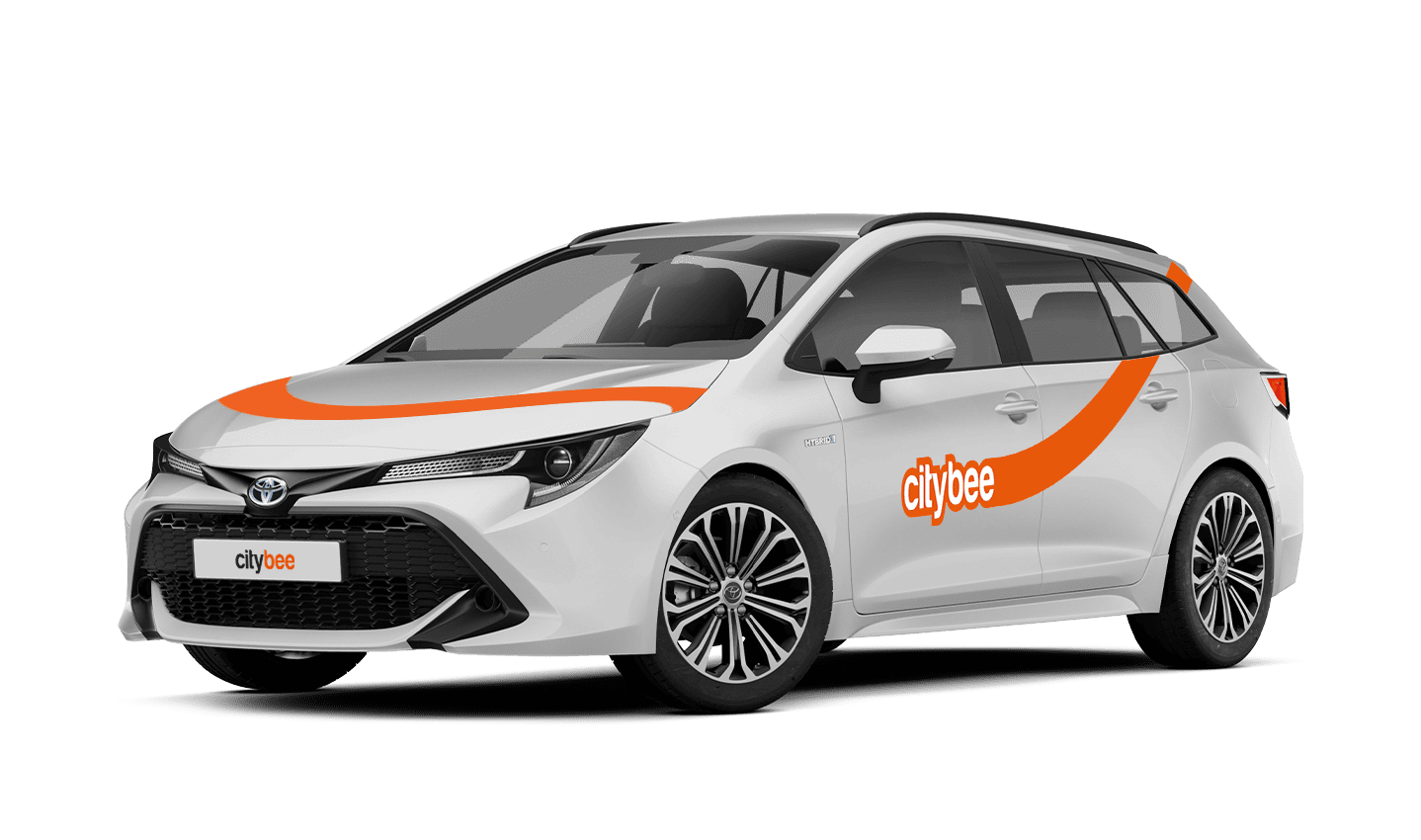
Toyota
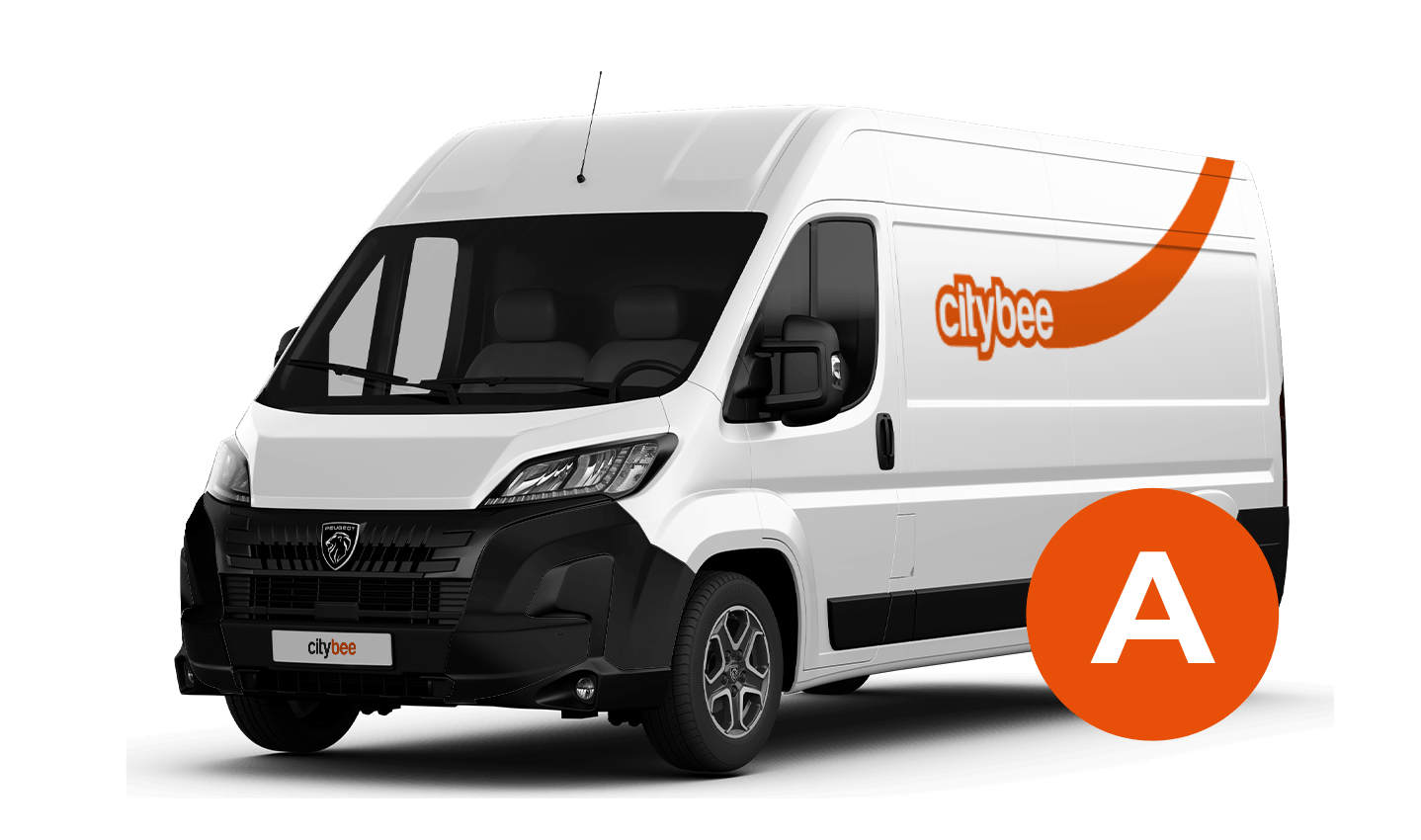
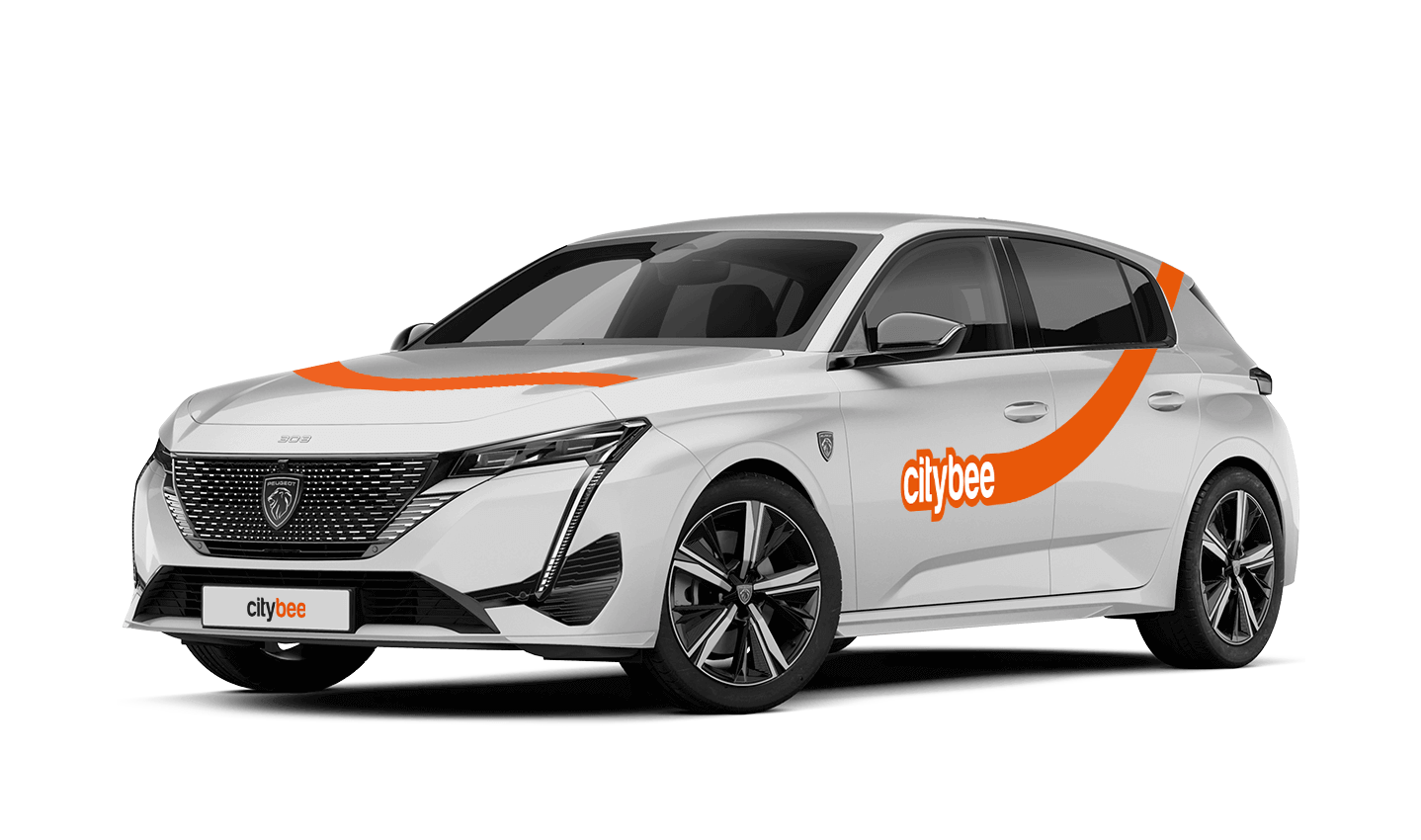
Peugeot
Skoda
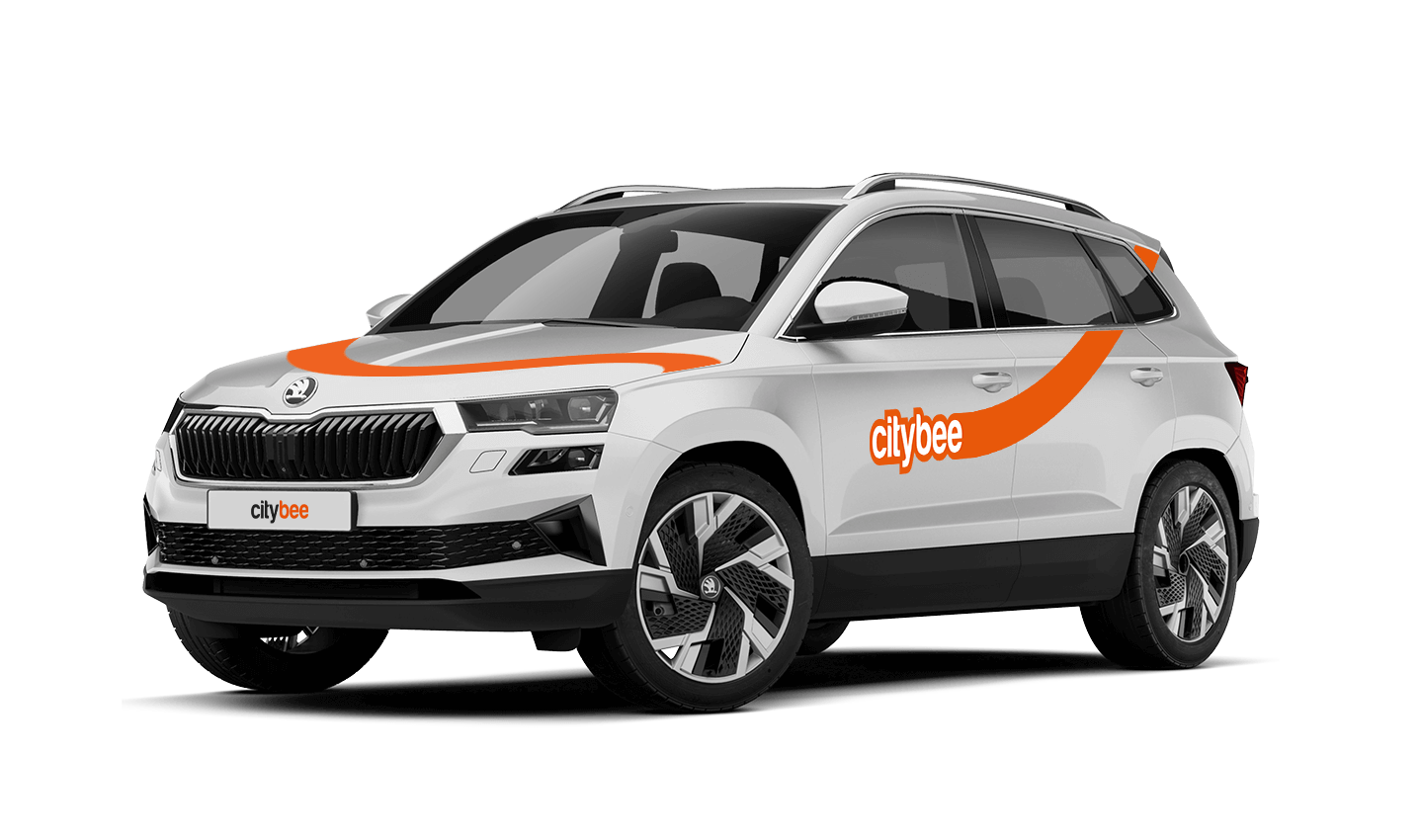
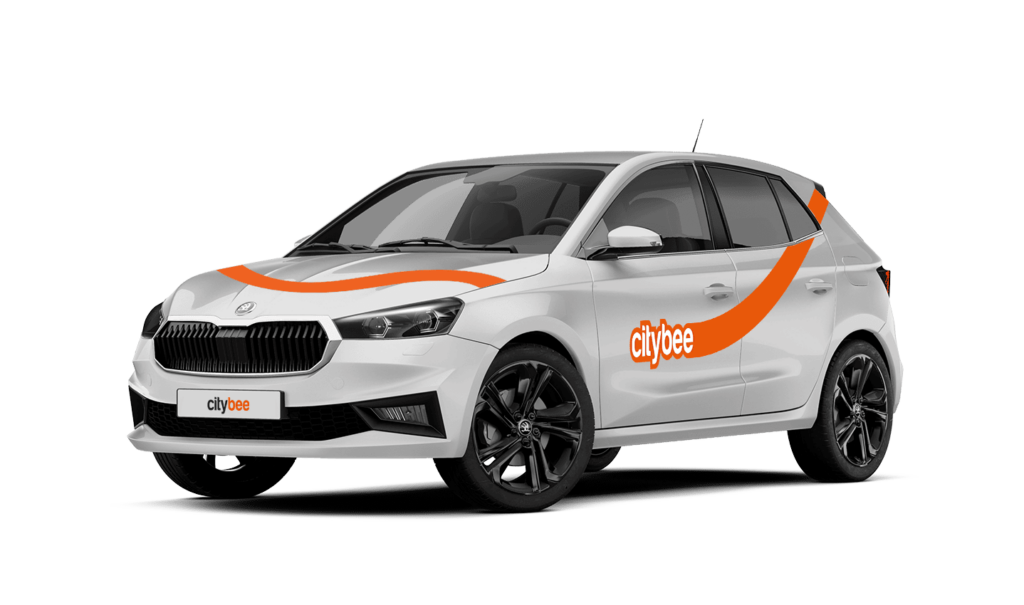
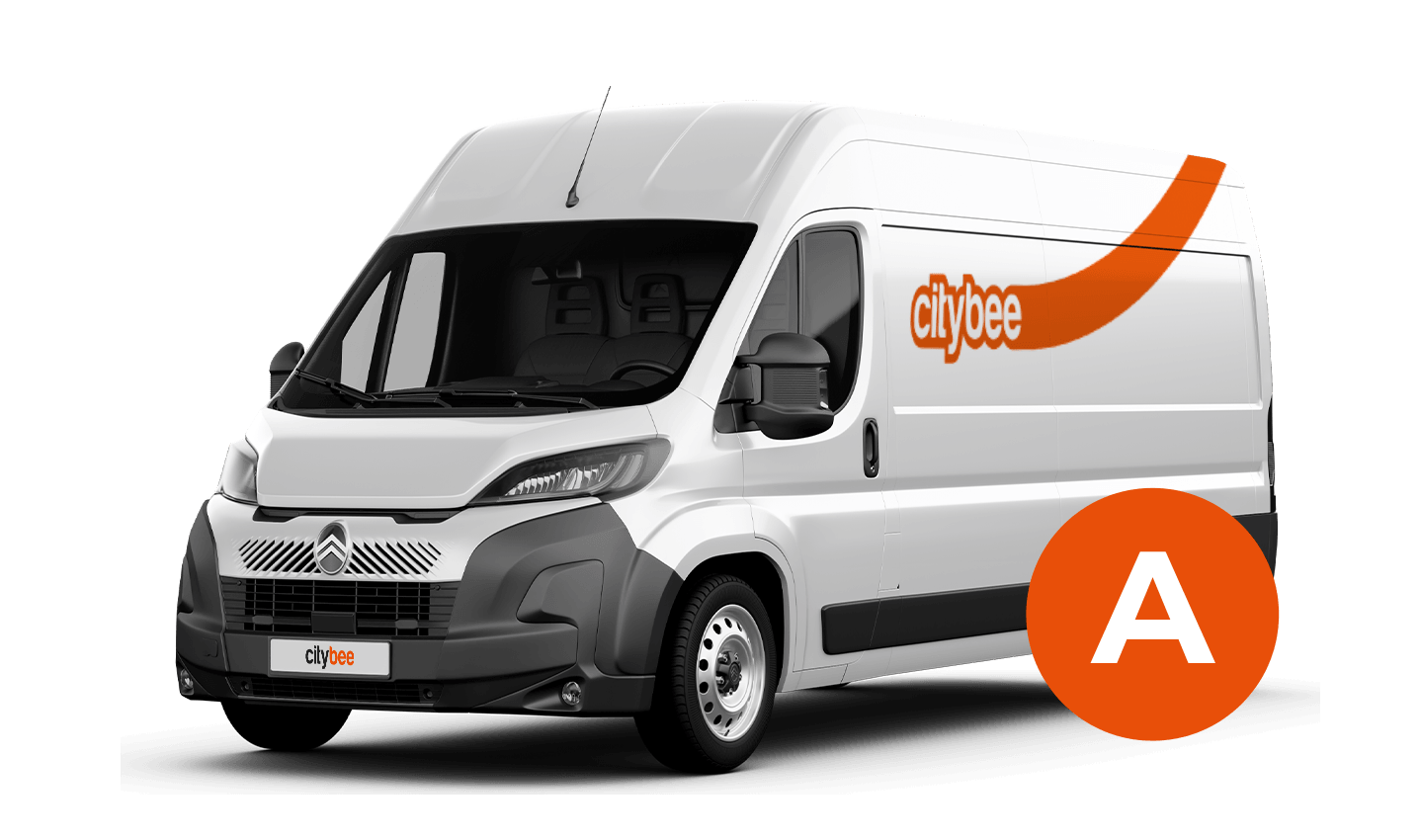
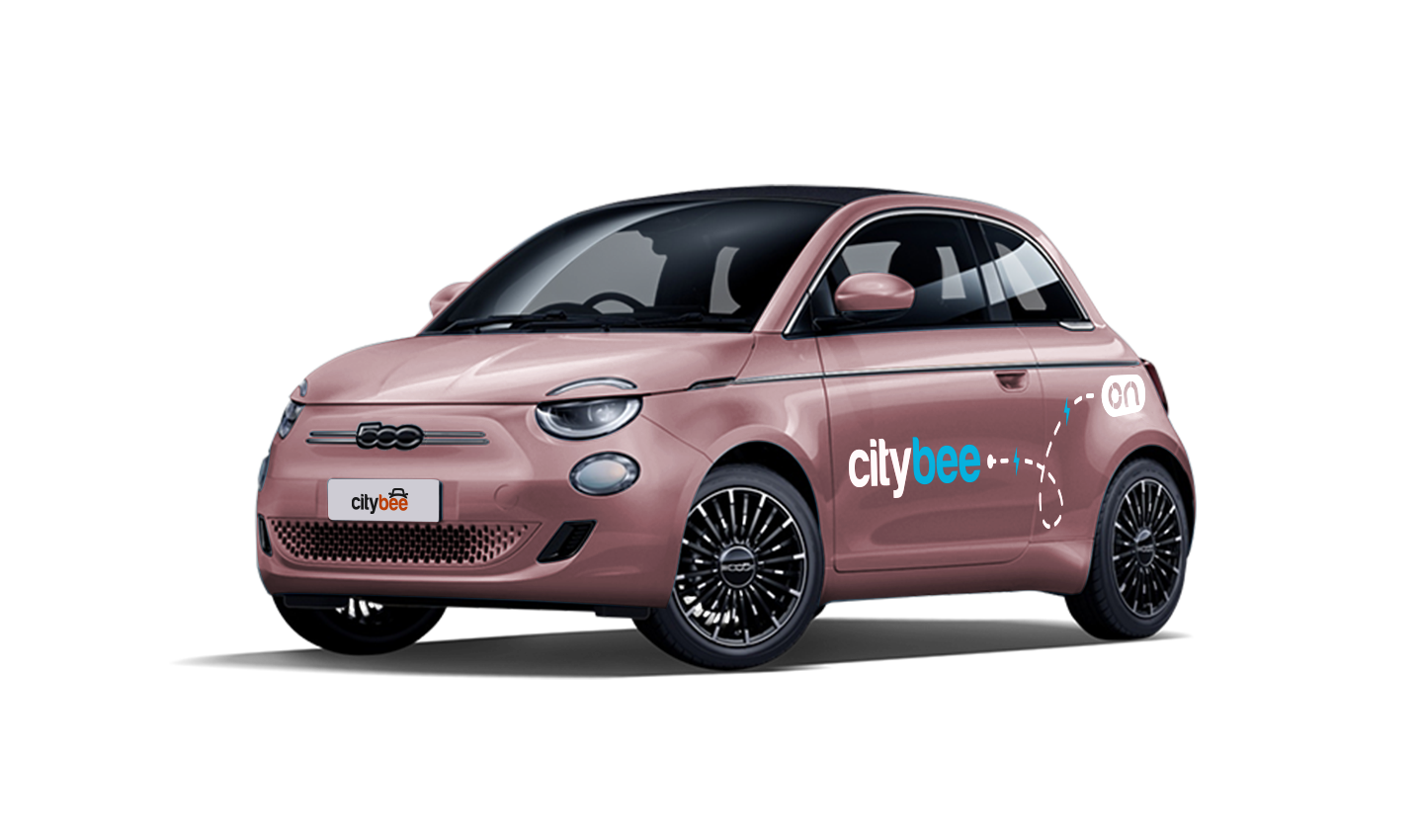
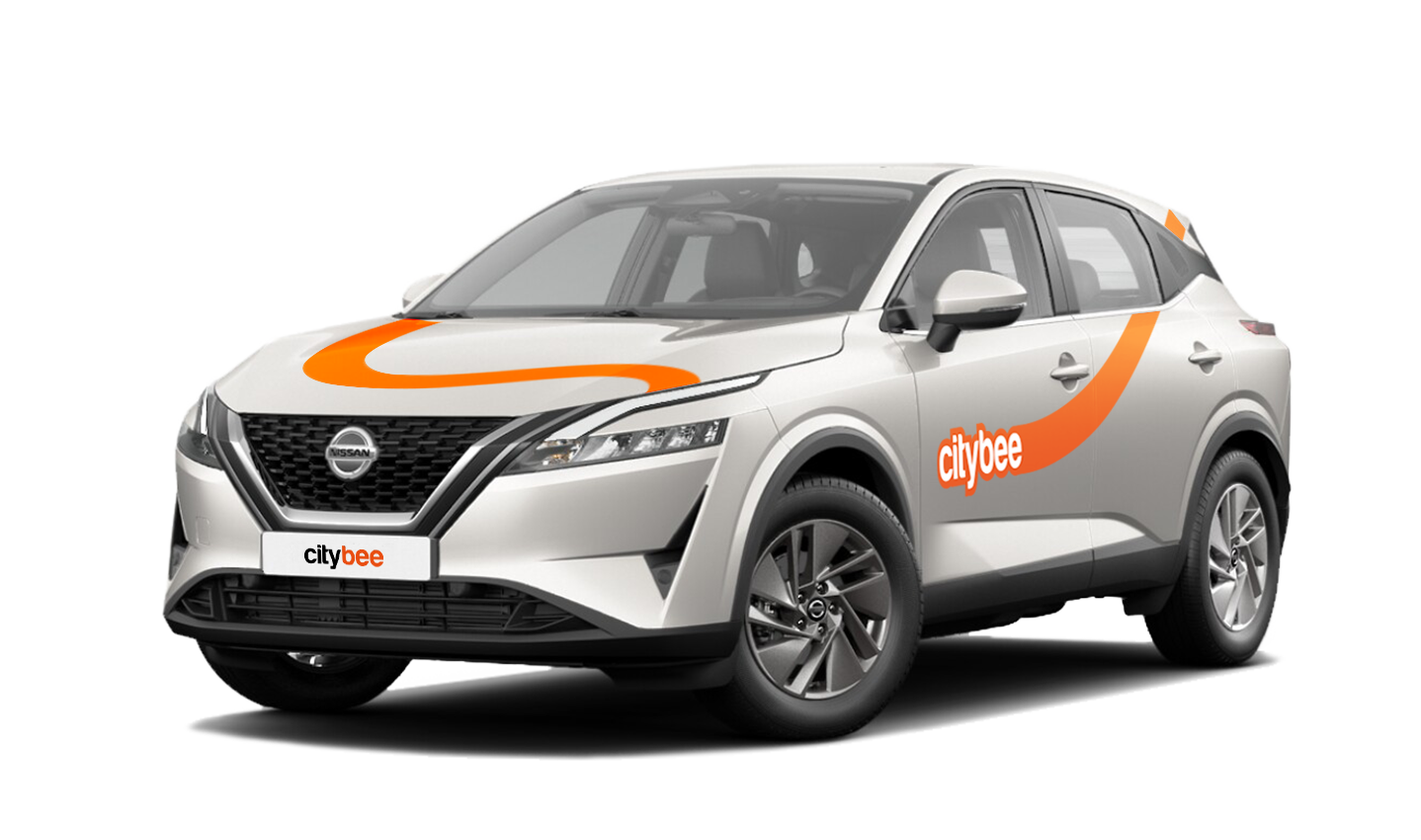
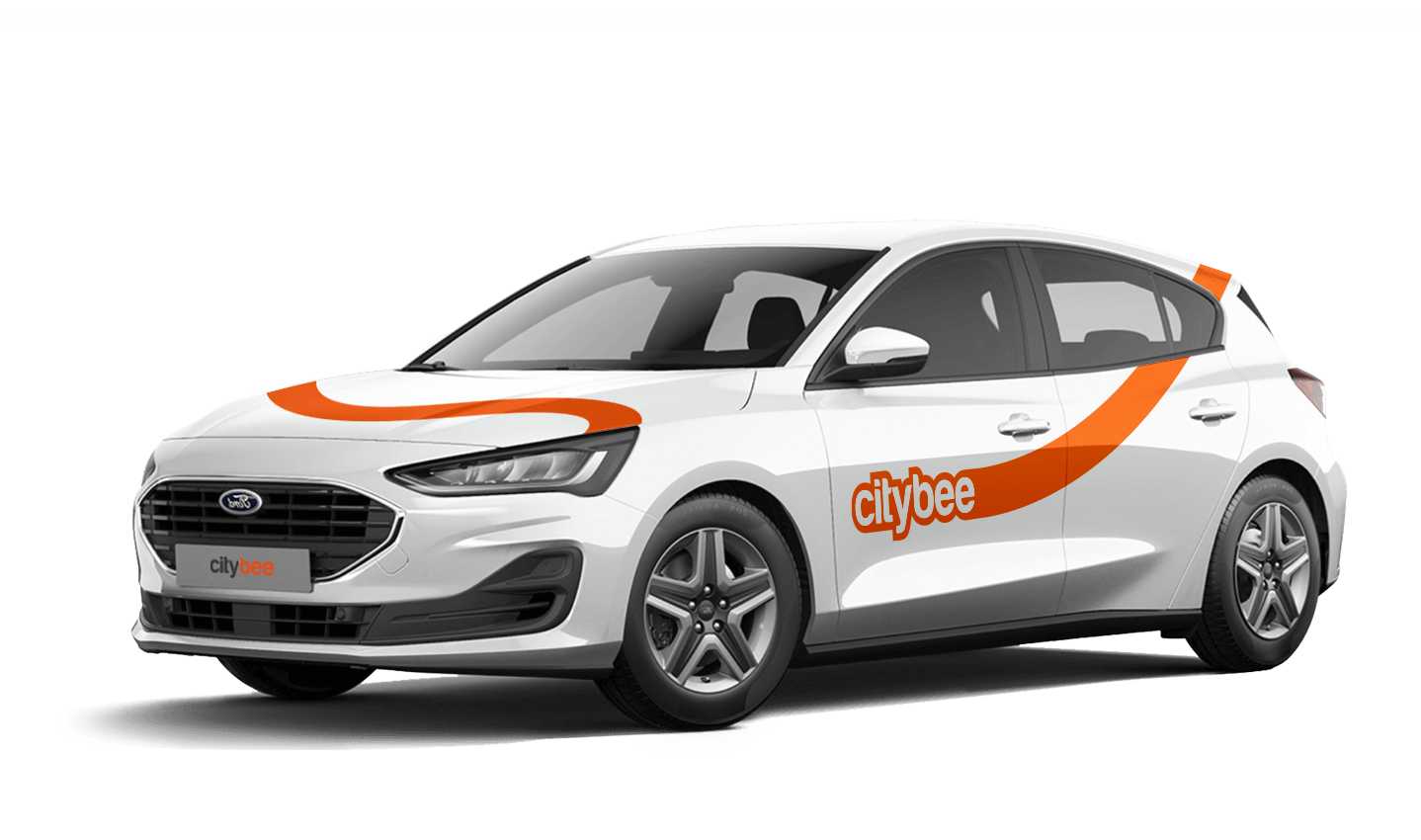
Jeep
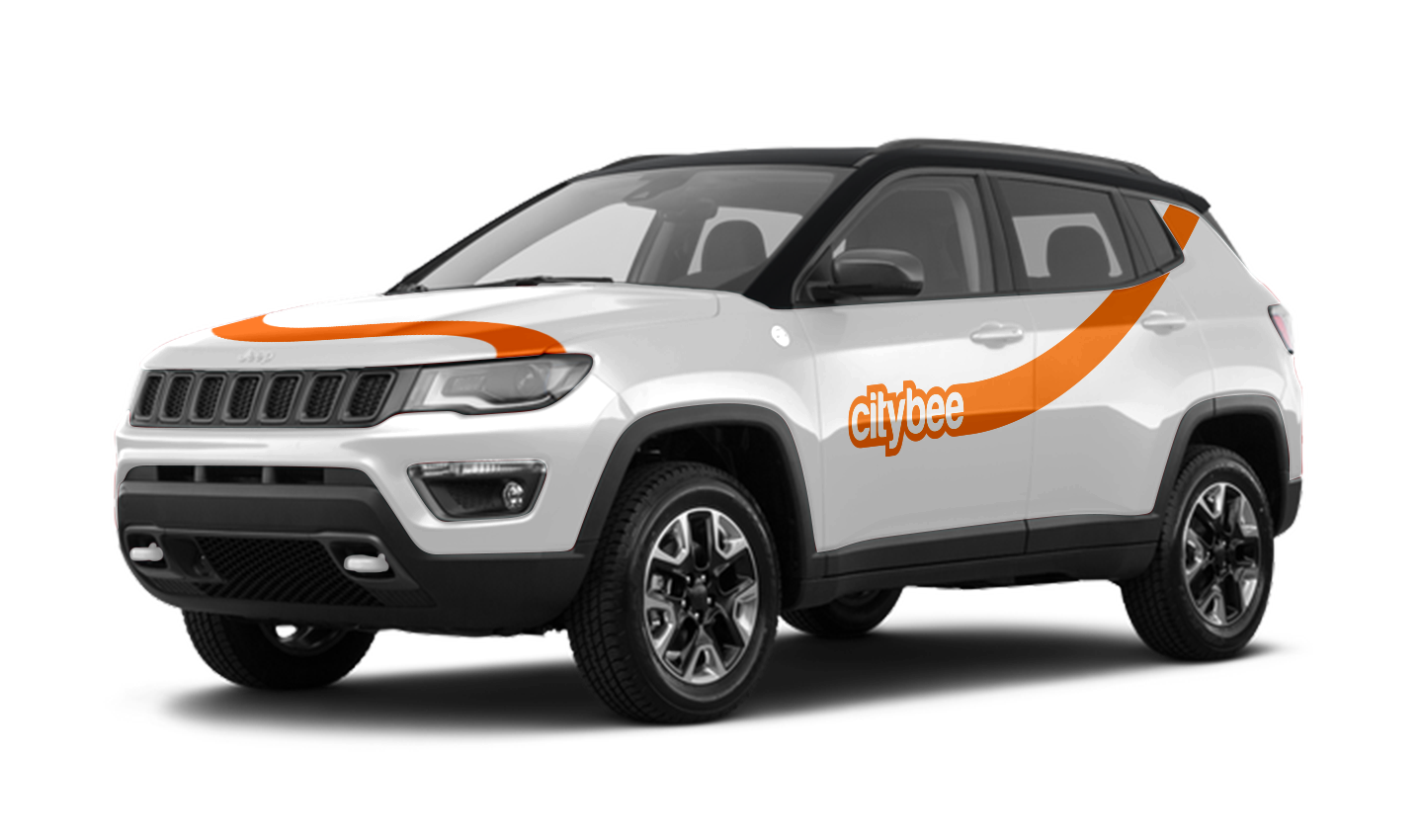
Hyundai
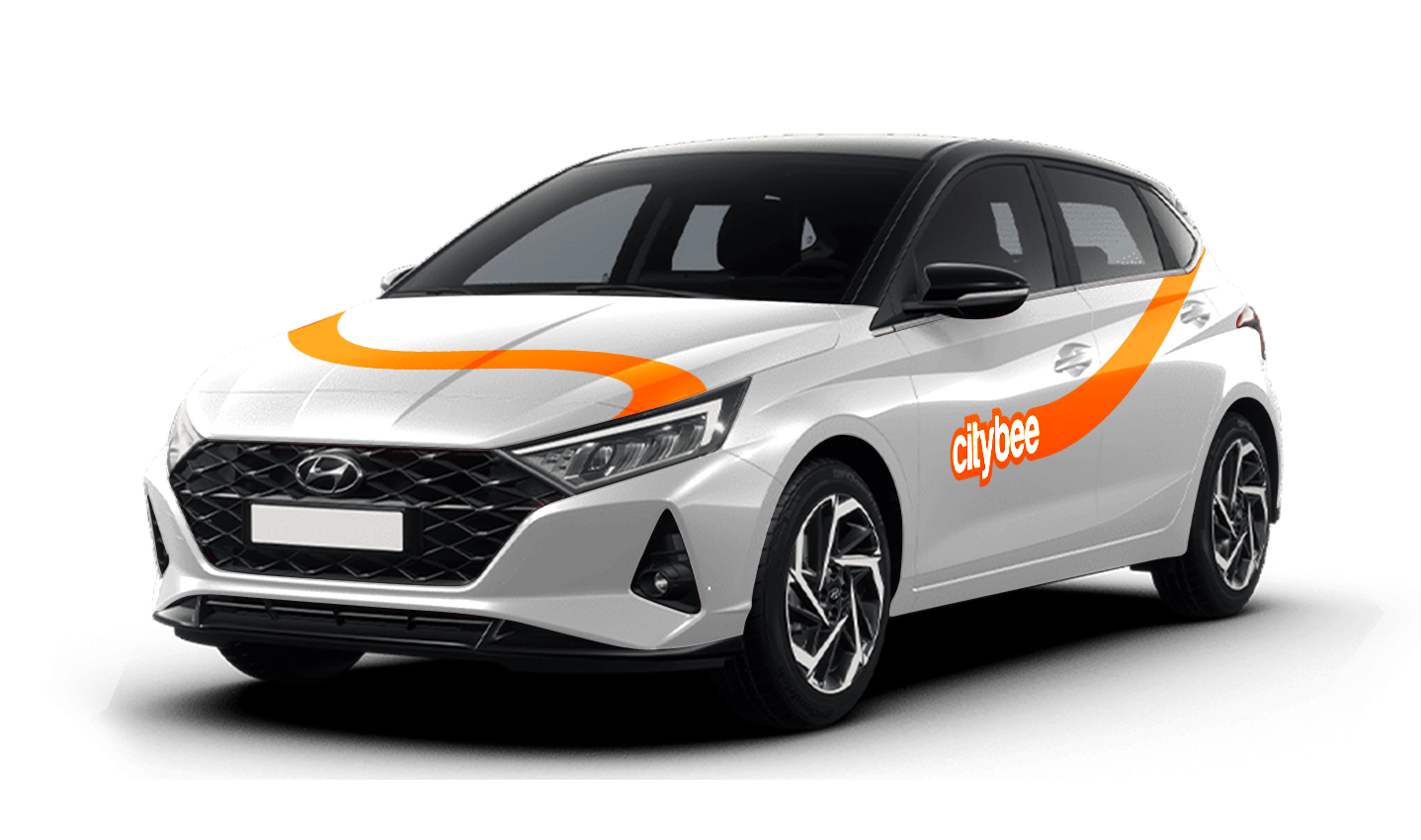
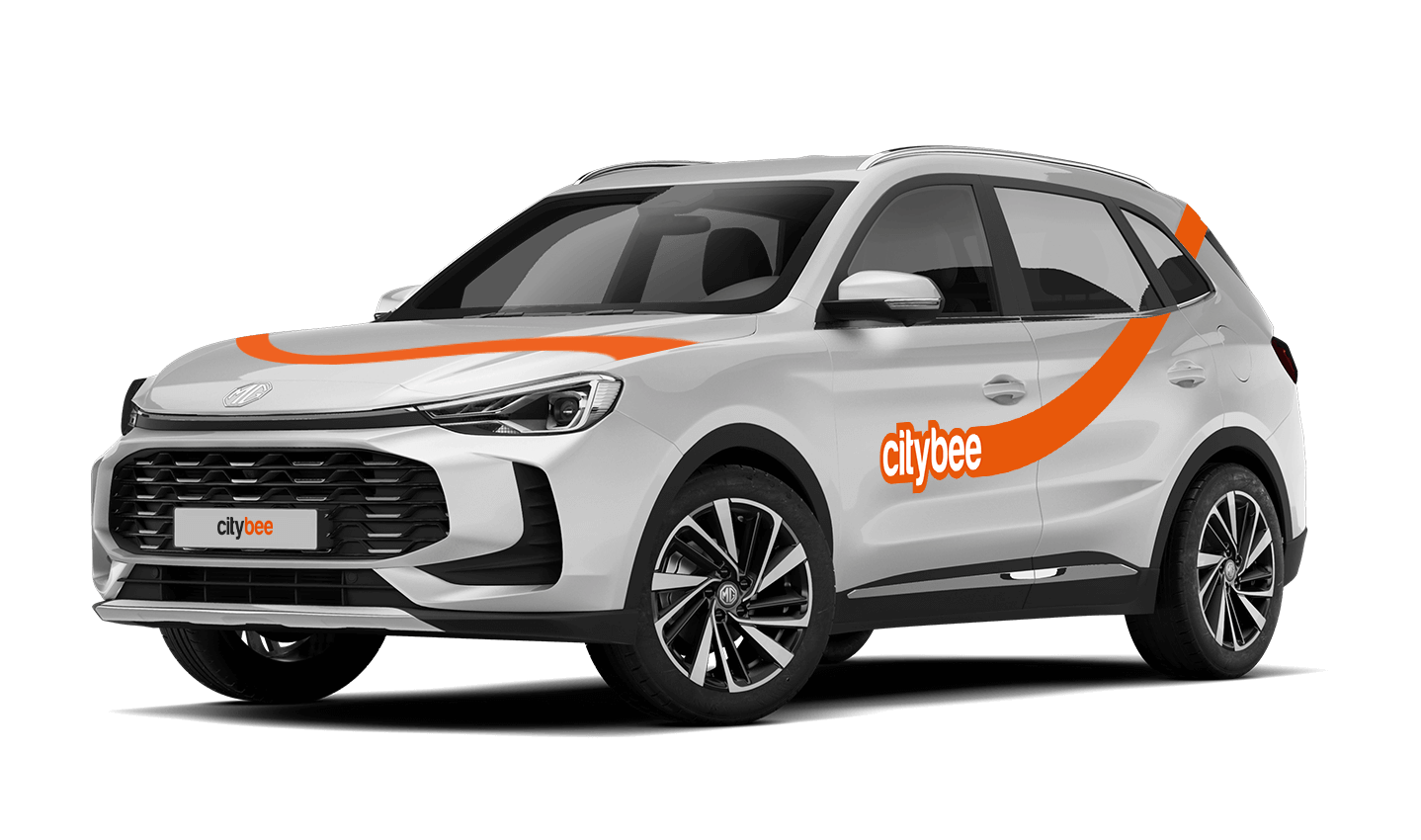
No cars found
Sorry, we can’t find any cars you’re looking for.
At least one payment card must be linked to a CityBee account. You can link more than one payment card and choose from which card you will be billed for services before each trip. It is important that the card type is VISA or MasterCard and that the secure internet shopping function is activated.
How do I activate the secure internet shopping function?
1. SEB: Log in to your internet bank and look for “Accounts and Cards” -> “Card List” in the menu bar at the top. You’ll see all of your cards that can be registered with the secure internet shopping programme. Next to the desired card in the options below, click on “Online Billing” and click “Enable”.
2. Swedbank: Log in to your internet bank and look for “Cards” -> “Secure internet shopping” in the menu bar on the left. You’ll see all of your cards that can be registered with the secure internet shopping programme. Select the desired card next to the note “Online Billing” and click “Enable”.
3. Šiaulių Bankas: Log in to your Internet bank and in the menu on the left, select “Cards” -> “Secure payment” -> select the payment card for which you want to activate the secure internet shopping and click “Register” -> enter the requested data and confirm it by pressing the “Enter and Sign” button -> soon the status of the card will change to “Registered”.
4. Luminor bank: Log in to your Internet bank and in the menu, select the item “Payment cards” -> select the payment card for which you want to activate the secure internet shopping and in the opened window click “Secure shopping service settings” -> select the “Order service” button -> enter the requested data, which the bank will show you later during the purchase -> click “Order service”.
5. Citadele bank: No additional activation of the secure internet shopping is required.
In the CityBee app, parking zones marked in yellow usually have a drop-off and/or pick-up fee for CityBee cars. This fee does not apply to trips made under the CityBee subscription. The drop-off fee in the yellow CityBee zone is not charged even if the trip starts under the subscription plan but ends with the ‘Flexible’ pricing due to exceeding the allocated kilometers and/or minutes in the subscription plan.
When purchasing additional trips, i.e., trip packages, during the subscription period, the CityBee drop-off and/or pick-up fee waiver in the yellow zone does not apply for the package trips.
For more information on CityBee parking zones, click here.
At least one payment card must be linked to a CityBee account. You can link more than one payment card and choose from which card you will be billed for services before each trip. It is important that the card type is VISA or MasterCard and that the secure internet shopping function is activated.
How do I activate the secure internet shopping function?
1. SEB: Log in to your internet bank and look for “Accounts and Cards” -> “Card List” in the menu bar at the top. You’ll see all of your cards that can be registered with the secure internet shopping programme. Next to the desired card in the options below, click on “Online Billing” and click “Enable”.
2. Swedbank: Log in to your internet bank and look for “Cards” -> “Secure internet shopping” in the menu bar on the left. You’ll see all of your cards that can be registered with the secure internet shopping programme. Select the desired card next to the note “Online Billing” and click “Enable”.
3. Šiaulių Bankas: Log in to your Internet bank and in the menu on the left, select “Cards” -> “Secure payment” -> select the payment card for which you want to activate the secure internet shopping and click “Register” -> enter the requested data and confirm it by pressing the “Enter and Sign” button -> soon the status of the card will change to “Registered”.
4. Luminor bank: Log in to your Internet bank and in the menu, select the item “Payment cards” -> select the payment card for which you want to activate the secure internet shopping and in the opened window click “Secure shopping service settings” -> select the “Order service” button -> enter the requested data, which the bank will show you later during the purchase -> click “Order service”.
5. Danske bank: No additional activation of the secure internet shopping is required.
6. Citadele bank: No additional activation of the secure internet shopping is required.
VW Crafter, VW e- Crafter and MAN TGE
Cargo area measurements:
Length – 3201 mm.;
Height – 1961 mm.;
Width – 1832 mm.;
Width between wheelhouse – 1380 mm..

VW Crafter load capacity is up to 1411kg.
VW e- Crafter load capacity is up to 950kg.
Renault Master
Cargo area measurements:
Height – 1894 mm.;
Width – 1765 mm.;
Length – 3733 mm.;
Width between wheelhouse – 1380 mm..
Car measurements:
Height – 2488 mm.;
Width – 2470 mm.;
Length – 6225 mm.
Load capacity is up to 1434kg.
Ford Transit
Cargo area measurements:
Height – 1886 mm.;
Width – 1784 mm.;
Length – 3494 mm;
Width between wheelhouse – 1392mm.
Car measurements:
Height – 2547 mm.;
Width – 2059 mm.;
Length – 5981 mm.
Load capacity is up to 1220kg.
Fiat Ducato
Cargo area measurements:
Height – 1932 mm
Width – 1870 mm
Length – 3705 mm
Wheelbase – 1422 mm
Car measurements:
Height – 2522 mm
Width – 2050 mm
Length – 5998 mm
Load capacity is up to 1326 kg
CityBee zones shown on the app map indicate where you can start, pause, or end your trip. Always follow local traffic and parking rules, and avoid restricted areas such as ‘No Parking’, ‘Reserved’, or private spaces.
Please do not leave ‘CityBee’ cars in underground or multi-story car parks, private driveways, lawns, or areas with time-regulated parking.
Important: parking zones are different for passenger, van, and electric van vehicles.
Zone Types and How They Work
Transparent (light) areas are the main ‘CityBee’ zones. Here, you can freely end your trip or park temporarily free of charges as long as you follow parking rules and don’t use disabled, reserved, or private spots. If you park in a private paid lot such as Citypark, Unipark, Europark (unless stated otherwise), you are responsible for the parking fee.
Yellow zones may include an extra fee or a discount when starting or ending a trip, depending on the zone. Tap the yellow zone or (€) icon in the app to view details.
Grey (dark) zones are areas where trips cannot be ended. You can drive through them or park temporarily, but if you do, you’ll need to pay any parking fees yourself.
If you want to finish your trip, you must move to a transparent or yellow zone.
Private or Paid Parking Lots
Parking in private paid lots is allowed unless stated otherwise, but you will need to cover the parking cost yourself.
Country-Specific Parking Rules
Lithuania: You can park the car in public city parking free of charge if it’s a ‘CityBee’ permitted zone displayed in the app. Be aware of private parking exceptions and traffic rules described above. You can find parking zones in Vilnius, Kaunas, Klaipėda, Palanga, Kretinga, Gargždai.
Latvia: CityBee vehicles may be parked free of charge in public city parking spaces in Riga, Liepāja, Ventspils, Ādaži, and Jūrmala (an entry permit is not required; however, an additional fee will apply if the trip is ended in the yellow parking zone).
In Daugavpils, CityBee vehicles may be parked free of charge in two designated public parking zones – the Vienības Square parking zone and the Lāčplēša Street parking zone. As these parking zones may change, we recommend confirming the latest information with our Customer Support team before parking the vehicle.
If the car is parked in other paid parking areas (including private parking lots such as Citypark and Europark), the driver is responsible for paying the parking fee, except for certain exceptions. Parking zones operated by Rīgas Satiksme, except for the R zone, are free of charge for CityBee users.
Estonia: Parking is free in public city spaces (except Tallinn Old Town) and in selected Europark private car parks. If you park in a private paid lot, you must pay for parking yourself. In Tallinn Airport, CityBee vehicles can be parked in the A4 car-sharing parking lot. More information about the exact location can be found here.
Travelling Between Cities and Countries
❗ You’re welcome to take a CityBee car across the Baltics (Lithuania, Latvia, Estonia) and finish your trip in any CityBee zone you see in the app. Just keep in mind that a €69 cross-border fee applies when a trip starts in Latvia or Estonia and ends in Lithuania.
More information about the reason for this additional fee can be found here.
If you end the trip in Latvia or Estonia, no additional fees will be charged.
Van drivers should note that in some cases, road vignettes or passes may need to be purchased separately, depending on local regulations.
Before You End Your Trip
1. Open the ‘CityBee’ app, click ‘Reservation’ and check your current zone.
2. Ensure you are in a transparent or yellow zone.
3. Review any applicable fee or discount in the app.
4. Confirm you are parked correctly according to traffic and parking rules.
5. Avoid grey zones, restricted areas, or private driveways.
Smoking is prohibited in CityBee cars. A fine for smoking in a car is €70.
When using CityBee, you don’t have to pay for fuel yourself – you only pay for the time and kilometers you drive.
Refueling is easy!
Go to any of our partner Circle K gas stations. Open the CityBee app and start the refueling. Follow the simple instructions, fill up, and hit the road!
If the fuel is below 1/4 of the tank, you’ll receive a €2 discount for topping up.
Step by Step refueling guide
Check the Reservation map in the app to see nearby fuel stations. Tap a station for details and directions, then drive there.
When you arrive, tap the notification or open the CityBee app, go to Reservation, and select Refuel.
The app shows available pumps. Pick your pump, activate it, and wait for confirmation.
When it says, “Ready to fuel,” pick up the nozzle and start fueling. Return the nozzle when finished. The app will update the fueling status automatically.
If you decide not to refuel, you can cancel in two ways:
Manual cancel: Pick up the nozzle and immediately return it – the refueling is canceled.
Automatic cancel: If the nozzle is never picked up, the app will automatically cancel the refueling after 2 minutes of inactivity.
In rare cases, you may need to use the fuel card inside the car. This happens if the pump doesn’t work via the app or if you’re refueling outside the Baltic States. The CityBee app shows the PIN code and fuel type under your active reservation.
If you use all the trips included in your CityBee subscription plan before it expires, you can purchase a new plan at any time.
Sorry, we can’t find any cars you’re looking for.