Due to company policy, we can only provide our services to customers with driver’s licenses issued in one of the countries listed below. If your country is not on the list, unfortunately, you will not be able to register.
Please note the following requirements:
We accept only valid photocard driver’s licenses with an expiry date.
We do not accept temporary or provisional driver’s licenses or documents.
We do not accept International Driving Permits (IDPs) or international driver’s licenses.
After submitting your driver’s license, you may be asked to provide an additional identification document to complete the verification process.
|
Australia |
|
Austria |
|
Belarus |
|
Belgium |
|
Bulgaria |
|
Canada |
|
Croatia |
|
Cyprus |
|
Czech Republic |
|
Denmark |
|
Egypt |
|
Estonia |
|
Finland |
|
France |
|
Georgia |
|
Germany |
|
Greece |
|
Hungary |
|
Iceland |
|
Ireland |
|
Isle of Man |
|
Israel |
|
Italy |
|
Latvia |
|
Liechtenstein |
|
Lithuania |
|
Luxembourg |
|
Malta |
|
Netherlands |
|
Norway |
|
Poland |
|
Portugal |
|
Romania |
|
Russia |
|
San Marino |
|
Slovakia |
|
Slovenia |
|
Spain |
|
Sweden |
|
Switzerland |
|
Turkey |
|
Ukraine |
|
United Kingdom |
|
United States of America |
VW Crafter, VW e- Crafter and MAN TGE
Cargo area measurements:
Length – 3201 mm.;
Height – 1961 mm.;
Width – 1832 mm.;
Width between wheelhouse – 1380 mm..

VW Crafter load capacity is up to 1411kg.
VW e- Crafter load capacity is up to 950kg.
Renault Master
Cargo area measurements:
Height – 1894 mm.;
Width – 1765 mm.;
Length – 3733 mm.;
Width between wheelhouse – 1380 mm..
Car measurements:
Height – 2488 mm.;
Width – 2470 mm.;
Length – 6225 mm.
Load capacity is up to 1434kg.
Ford Transit
Cargo area measurements:
Height – 1886 mm.;
Width – 1784 mm.;
Length – 3494 mm;
Width between wheelhouse – 1392mm.
Car measurements:
Height – 2547 mm.;
Width – 2059 mm.;
Length – 5981 mm.
Load capacity is up to 1220kg.
Fiat Ducato
Cargo area measurements:
Height – 1932 mm
Width – 1870 mm
Length – 3705 mm
Wheelbase – 1422 mm
Car measurements:
Height – 2522 mm
Width – 2050 mm
Length – 5998 mm
Load capacity is up to 1326 kg
You can use CityBee cars without 2 years of driving experience!
However, in Lithuania and Estonia, you must bring a personal “Maple Leaf” magnetic sticker, which you must stick to the back of the car in Lithuania and to the front of the car in Estonia. Do not forget to remove the sticker at the end of your trip.
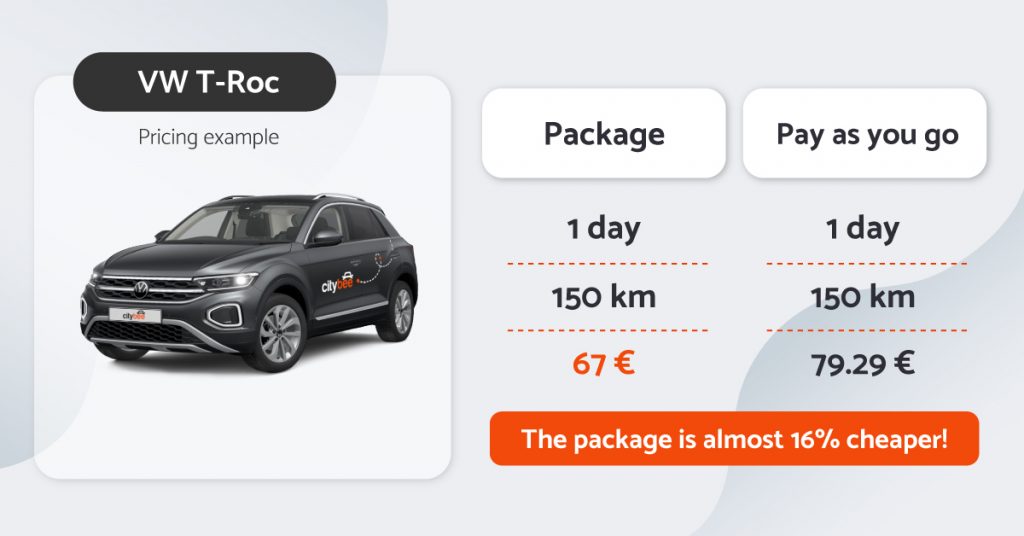
We offer prepaid trip packages that include fixed time with fixed kilometers.
By choosing prepaid packages, you will pay less than the usual fare with the same distance and time in the ‘Flexible’ option.
If you happen to exceed the kilometers and /or time included in the price of the package, you will be able to continue the journey safely.
After the prepaid package ends (mileage and time included are finished), you will be paying for additional minutes and/or kilometers as specified in the chosen package deal.
You can also continue your trip by purchasing one more additional prepaid package without completing the active reservation.
If you decide to end the trip before using the time and /or kilometers indicated on the prepaid package, this balance will not be refunded.
The price of the fixed prepaid package will be charged at the beginning of the trip and the price for the extra kilometers and/or time will be charged during or at the end of the journey, depending on the length of your trip.
A day mentioned in the trip packages is 24 hours.
You can find the packages and prices in the CityBee app, also, the prices of prepaid packages can be viewed here: https://citybee.lv/en/packages/.
Now you are able to customize the pre-paid packages yourself by selecting time and kilometers in the app. Choose the preferred duration of the package, then, select the number of kilometers you anticipate driving during that time. This way, you can tailor the pre-paid package to fit your specific needs and budget. Enjoy the flexibility and convenience of customizing your own package!


You can refuel your CityBee at any Circle K station. Just open the app, check the map for the nearest station, and tap it for directions. When you get there, open the app, hit Refuel, and follow the simple steps. Want more info? See the full guide here.
CityBee vehicles use two types of fuel: petrol and diesel.
Most passenger cars run on petrol, while cargo vans use diesel. However, there are exceptions, so always make sure to check which fuel is required for your specific vehicle before refuelling.
Check the sticker inside the fuel filler flap:
E5 / E10 – Petrol.
Diesel / B7 / B10 – Diesel.
If you are refuelling at a Circle K station, use the CityBee app. After selecting and activating the specific fuel pump, the app will also display the corresponding fuel type
If you are unable to start refuelling through the CityBee app, please contact our Customer Support team using the phone number available in the app during your trip or in the Contacts section of our website. Please make sure to use the number for the country where your trip started (Latvia, Lithuania, or Estonia). You can also reach us via in-app chat or email.
We will help you confirm which fuel is suitable for your selected vehicle.
Important! Never guess which fuel to use. Filling the vehicle with the wrong type of fuel can cause serious damage.
The CityBee subscription plan does not automatically renew when it expires. However, if needed, you can purchase a new plan to continue your subscription.
Before you hit the road, we’d love for you to do a quick check to make sure the car is roadworthy. If you notice anything that might make it unsafe or unsuitable to drive, just let us know through the CityBee app. This simple check helps keep our cars in great shape and ensures a smooth, safe ride for you!