
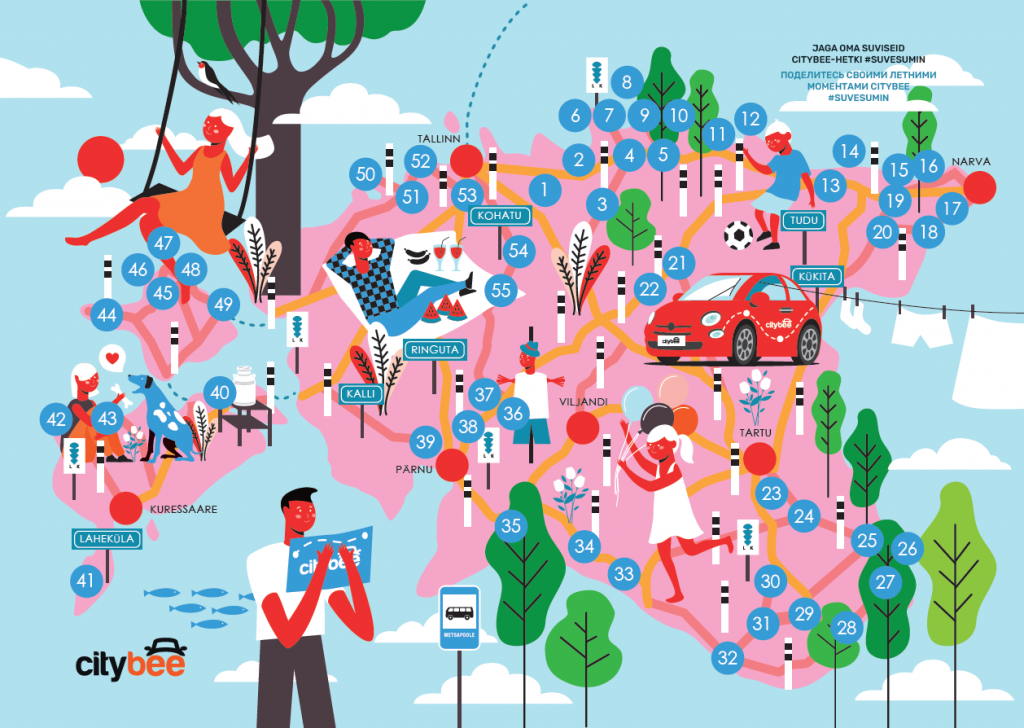
CityBee adventure map 🗺
Longing for adventure?
Click on the map below to discover exciting places all over Estonia! 👇
When using CityBee, you don’t have to pay for fuel yourself – you only pay for the time and kilometers you drive.
Refueling is easy!
Go to any of our partner Circle K gas stations. Open the CityBee app and start the refueling. Follow the simple instructions, fill up, and hit the road!
If the fuel is below 1/4 of the tank, you’ll receive a €2 discount for topping up.
Step by Step refueling guide
Check the Reservation map in the app to see nearby fuel stations. Tap a station for details and directions, then drive there.
When you arrive, tap the notification or open the CityBee app, go to Reservation, and select Refuel.
The app shows available pumps. Pick your pump, activate it, and wait for confirmation.
When it says, “Ready to fuel,” pick up the nozzle and start fueling. Return the nozzle when finished. The app will update the fueling status automatically.
If you decide not to refuel, you can cancel in two ways:
Manual cancel: Pick up the nozzle and immediately return it – the refueling is canceled.
Automatic cancel: If the nozzle is never picked up, the app will automatically cancel the refueling after 2 minutes of inactivity.
In rare cases, you may need to use the fuel card inside the car. This happens if the pump doesn’t work via the app or if you’re refueling outside the Baltic States. The CityBee app shows the PIN code and fuel type under your active reservation.
Bee Chill – we’ve got your back! If you happen to have an accident and accidentally damage the vehicle, don’t stress – we’ve got you covered. Just be sure to notify us right away, and we’ll take care of the rest.
The BeeChill is a financial responsibility fee is applied to all ‘Flexible’ trips, and it’s already included in the price of trip packages or trips made with a subscription plan. You can see the fee in the app before you start your trip.
This fee is intended to cover any damage caused to the vehicle as a result of an accident for which you are responsible.
However, BeeChill does not apply in any of the cases listed in Section 7.17 of our Terms of Use. Below are some of the most common examples:
• if the accident is not reported;
• if the accident occurred while driving under the influence of alcohol or drugs;
• if the accident resulted from a serious violation of traffic regulations;
• or in any other cases specified in Section 7.17 of the Terms of Use.
For complete information about the application of BeeChill and all applicable exceptions, please refer to Section 7.17 of our Terms of Use.
You can refuel your CityBee at any Circle K station. Just open the app, check the map for the nearest station, and tap it for directions. When you get there, open the app, hit Refuel, and follow the simple steps. Want more info? See the full guide here.
At least one payment card must be linked to a CityBee account. You can link more than one payment card and choose from which card you will be billed for services before each trip. It is important that the card type is VISA or MasterCard and that the secure internet shopping function is activated.
How do I activate the secure internet shopping function?
1. SEB: Log in to your internet bank and look for “Accounts and Cards” -> “Card List” in the menu bar at the top. You’ll see all of your cards that can be registered with the secure internet shopping programme. Next to the desired card in the options below, click on “Online Billing” and click “Enable”.
2. Swedbank: Log in to your internet bank and look for “Cards” -> “Secure internet shopping” in the menu bar on the left. You’ll see all of your cards that can be registered with the secure internet shopping programme. Select the desired card next to the note “Online Billing” and click “Enable”.
3. Šiaulių Bankas: Log in to your Internet bank and in the menu on the left, select “Cards” -> “Secure payment” -> select the payment card for which you want to activate the secure internet shopping and click “Register” -> enter the requested data and confirm it by pressing the “Enter and Sign” button -> soon the status of the card will change to “Registered”.
4. Luminor bank: Log in to your Internet bank and in the menu, select the item “Payment cards” -> select the payment card for which you want to activate the secure internet shopping and in the opened window click “Secure shopping service settings” -> select the “Order service” button -> enter the requested data, which the bank will show you later during the purchase -> click “Order service”.
5. Citadele bank: No additional activation of the secure internet shopping is required.
The CityBee subscription plan does not automatically renew when it expires. However, if needed, you can purchase a new plan to continue your subscription.
If you experience a flat tire during your trip, don’t worry—we’re here to help! Here’s what you should do:
Pull over safely: First and foremost, make sure you stop the car in a safe location.
Contact us immediately: Let us know about the flat tire as soon as possible by reaching out through the CityBee app or our customer service. We’ll guide you on the next steps and assist with any necessary arrangements.
Don’t attempt repairs on your own: We’ll take care of everything, so there’s no need to replace the tire yourself. Just follow the instructions provided by our team.
The good news is that the BeeChill fee is designed to cover tire repairs, provided that you follow our Terms of Service and adhere to traffic laws. You’ll be covered as long as the flat tire isn’t caused by actions like driving on it while it’s flat, causing more damage, or failing to report the incident.
For more details, please take a moment to review our Terms of Service. We’re here to support you and ensure your experience is as smooth as possible!
The radar function in the CityBee app helps the user to be the first to know if any of the CityBee cars are nearby his location at a specific time chosen by the user.
The radar function icon can be found in the ‘Search’ section of the app, to the left of the ‘Filter’ icon. When you click on the icon and activate the radar, it will turn blue.
The minimum radar distance is 150 meters, the maximum – 1250 meters.
When activating the radar, you can choose between two options:
Notification without automatic reservation – when a CityBee car appears at the specified time and distance, the app will send a message to the user to inform them about it.
Automatic reservation – when a CityBee car appears at the specified time and distance, an automatic car reservation will be made by choosing the ‘Flexible’ pricing. The tariff can be changed after car reservation. Car reservation remains free until the end of the free reservation period (15 min).
Additional information:
The radar function will be activated at the specified time and will remain active until you reserve your car. If the car is not available within 2 hours, the radar will switch off. The radar function detects only cars that are incoming in the current location of the user and chosen distance when the radar function is activated.
Due to company policy, we are able to provide our services to customers who have Drivers licenses issued from one of these countries listed below.
If your country is not on the list – unfortunately, you will not be able to register.
Also, our system is unable to accept International Driver’s Permits/ Licenses.
|
Australia |
|
Austria |
|
Belarus |
|
Belgium |
|
Bulgaria |
|
Canada |
|
Croatia |
|
Cyprus |
|
Czech Republic |
|
Denmark |
|
Egypt |
|
Estonia |
|
Finland |
|
France |
|
Georgia |
|
Germany |
|
Greece |
|
Hungary |
|
Iceland |
|
Ireland |
|
Isle of Man |
|
Israel |
|
Italy |
|
Latvia |
|
Liechtenstein |
|
Lithuania |
|
Luxembourg |
|
Malta |
|
Netherlands |
|
Norway |
|
Poland |
|
Portugal |
|
Romania |
|
Russia |
|
San Marino |
|
Slovakia |
|
Slovenia |
|
Spain |
|
Sweden |
|
Switzerland |
|
Turkey |
|
Ukraine |
|
United Kingdom |
|
United States of America |
Longing for adventure?